
If your phone speaker is too quiet, first check the volume control for the sound you are actually using. Then confirm the output device and compare another known-clear recording. A low ringtone, quiet call, and quiet music playback are not necessarily the same problem.
This guide is for sound that is present but unusually soft. If nothing plays at all, use the phone-speaker no-sound guide. Increasing volume is not a repair method for a silent output.
Find the Quiet Audio Path
| What is quiet? | Start here |
|---|---|
| Music, videos, or games | Media volume and the selected playback output |
| The other person’s voice in a call | In-call volume and receiver versus speakerphone |
| Ringtones or notifications | The alert controls, not just the media slider |
| One particular app | Its settings and another recording |
| One headphone or speaker channel | Balance settings, placement, and the device design |
| Every source after a splash or drop | Device-care guidance and support, not a booster |
Start with the affected row. Changing every sound setting at once can hide the cause of the improvement.
1. Adjust Volume While the Sound Is Active
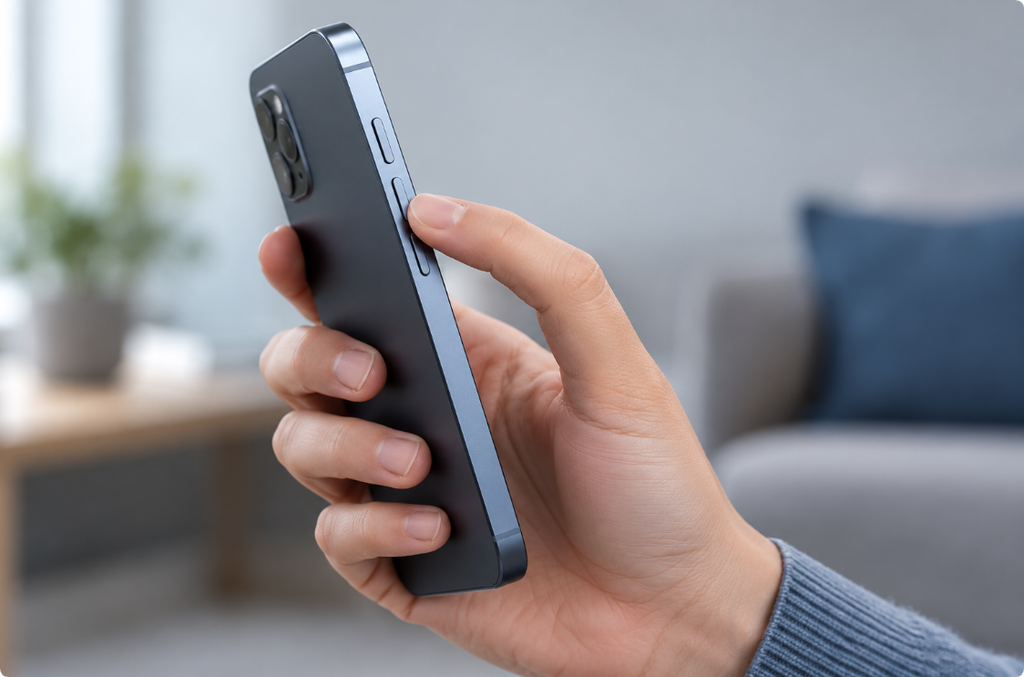
Play the media you are checking, then press a volume button and inspect the control that changes. During a call, adjust the level while the call is active. Do not assume a loud ringtone means your media is set high.
Google’s Pixel volume documentation separates media, call, ring, notification, and alarm levels. It also explains that the active task can determine which control a button changes. Other phones may organize these controls differently. Google volume controls
Stop at a comfortable listening level. Maximum volume is not necessary to establish whether changing the correct control helps.
2. Check the Selected Output
If sound is being sent to another device, the phone in your hand may not be the relevant speaker. Review any connected headphones, Bluetooth accessories, vehicle, or external display.
Temporarily disconnect accessories for one comparison through the built-in speaker. If you are intentionally checking headphones or a wireless speaker, examine their own controls too. Avoid assuming that every volume indicator refers to the same playback path.
3. Compare a Known-Clear Recording
Choose familiar speech and keep the phone at the same distance. Compare another recording without changing the volume.
Some recordings are simply softer than others. A quiet track is not enough to establish a hardware problem. Also compare another app: an issue limited to one app should not trigger repeated cleaning of the handset.
You can use the phone-speaker listening guide to organize those comparisons. It is a written guide, not an automated diagnostic test.
4. Remove a Covering Case and Review Placement
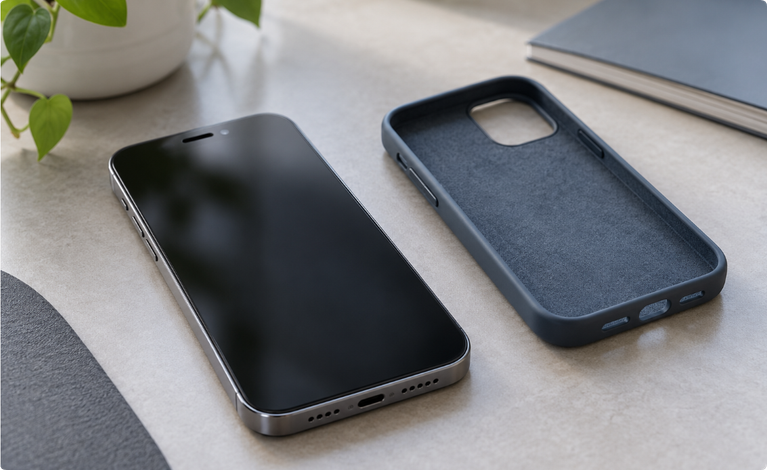
A hand, case, or nearby surface may cover an opening or change how clearly you hear it. Remove the case and hold the phone normally without cupping the grille, then replay the same recording.
This is a comparison of the listening conditions, not a measurement of speaker power. A change in sound when you move the phone does not establish whether a component is damaged.
For visible exterior contamination, follow the safe speaker-cleaning guide. Do not push a tool into an opening to make the phone louder.
5. Check Balance and Any Recent Setting Change
If your output supports separate channels, inspect its balance setting. A control moved toward one side can change your impression of overall loudness. Review recent equalizer or enhancement changes and compare the ordinary setting before adding gain.
Accessibility and hearing-protection settings may serve an important purpose. Do not disable them indiscriminately. Note a setting before a temporary comparison and restore it when appropriate. Headphone-specific controls are not automatically controls for the built-in speaker.
6. Do Not Expect Matching Phone Speakers
Two speaker locations do not necessarily mean two identical units. Google explains that Pixel phones use a smaller top receiver and a generally louder bottom speaker. This is an example of why a quiet opening is not enough to diagnose failure. Pixel speaker design
Check the hardware information for your exact model. Not every grille contains a speaker, and call playback may behave differently from music.
Is a Volume Booster the Next Step?
Not for unexplained low sound. First establish whether the issue follows the app, recording, output, or device. Adding amplification can make a quiet recording louder without resolving a wrong output or damaged component.
If the result becomes harsh, stop increasing it. A clearer, comfortable listening setup is more useful than reaching the highest possible number on a slider. For a broader discussion of settings and listening conditions, see improving phone audio quality.
When to Contact Support
Seek model-specific help if the speaker remains unusually quiet across different sources after basic checks, especially after a drop, repair, or liquid exposure. Apple also recommends service when sound issues persist after troubleshooting. Apple speaker support
Record the affected sound category and whether removing accessories changed the result. Do not promise yourself that a cleaning sound will restore the device’s original output; the cause may not be moisture or an exterior obstruction.
Frequently Asked Questions
Why is my speaker quiet even when the slider looks high?
The slider may control a different sound category, playback may be routed elsewhere, or the source itself may be quiet. Check the active output and recording before deciding that the speaker is weak.
Why are calls quiet but videos loud?
Calls and videos can use different levels and speaker paths. Compare in-call volume and speakerphone rather than changing only media volume.
Can cleaning improve low speaker volume?
Approved exterior cleaning may help a visible obstruction. It cannot increase the speaker’s designed output or repair damage.
Should both phone speakers be equally loud?
Not necessarily. Layout and speaker roles vary. Use the model’s hardware information, not symmetry alone, to interpret a comparison.
Why is only one app quiet?
Review that app and compare a known-clear source elsewhere. App-specific processing or source levels can matter even when the handset is functioning.
Official Sources
Editorial note: This article explains settings and comparisons, not a volume-booster service or a measured loudness test. The featured image is AI-generated.