
When a phone produces no sound at all, the speaker is not always broken. Audio may be muted, routed to another device, limited to one app, interrupted by software, blocked by moisture, or affected by damaged hardware.
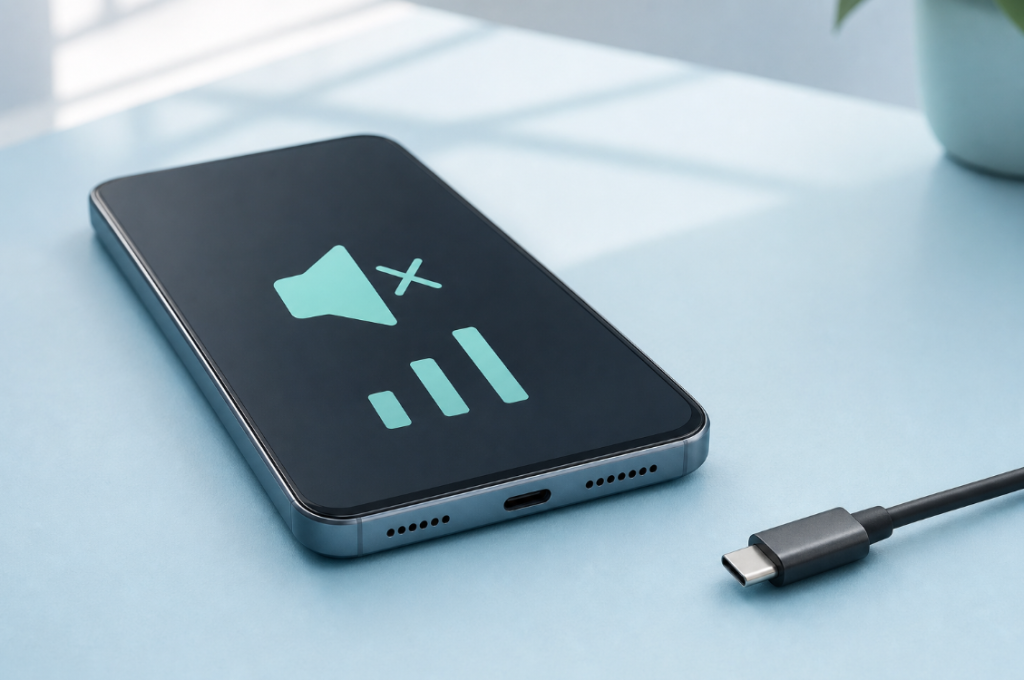
Start with reversible checks. Do not open the phone or run a loud cleaning tone until you know the speaker can still produce audio.
Quick Checklist for a Phone With No Sound
- Raise the media volume while audio is actively playing.
- Turn off Bluetooth and disconnect wired or USB audio accessories.
- Remove the case if it covers any speaker opening.
- Test a system alert, a call, a browser video, and a local audio file.
- Check silent, focus, or do-not-disturb settings.
- Restart the phone.
- Inspect the exterior speaker grille for dirt or moisture.
- If the phone was dropped or exposed to liquid, stop repeated tests and assess possible hardware damage.
If only one type of audio is missing, the result points to a setting, app, or specific speaker rather than total audio failure.
Match the Symptom to the Next Test
| Symptom | Possible cause | Next test |
|---|---|---|
| Videos are silent but calls work | Media volume, app, or Bluetooth routing | Play a local recording and turn off Bluetooth |
| Calls are silent but videos work | Earpiece, call routing, or call-volume setting | Use speakerphone and try another call |
| Notifications are silent but music works | Silent mode, focus mode, or notification settings | Check system sound and app notification settings |
| Headphones work but the phone speaker does not | Blocked grille, routing state, moisture, or hardware | Disconnect accessories, restart, and test the built-in speaker |
| No app, alert, or call makes sound | System audio or hardware problem | Restart, check updates, and run manufacturer diagnostics if available |
| Audio stopped after a splash | Moisture near the grille or internal water exposure | Disconnect power and follow the wet speaker guide |
| Audio stopped after a drop | Connector, speaker, board, or frame damage | Avoid disassembly and seek qualified inspection |
1. Adjust the Correct Volume Control
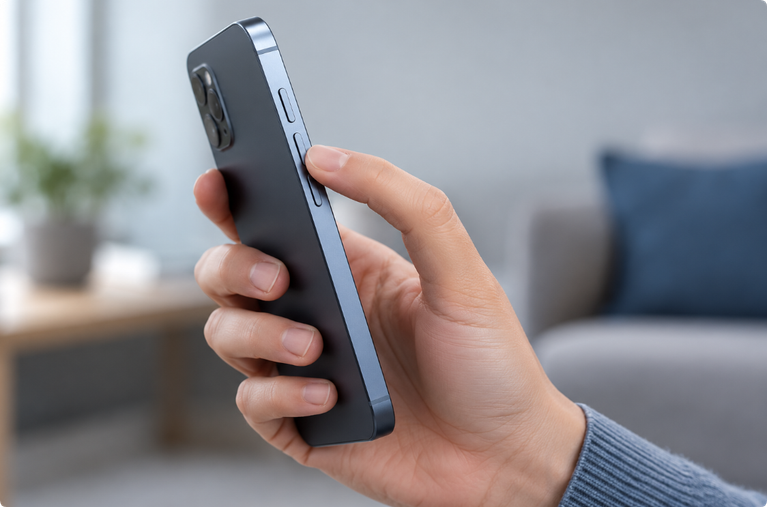
Phones often store separate levels for media, calls, alarms, and notifications. Pressing the volume button on the home screen may change the ringtone while leaving media muted.
Play a video or local audio file first, then raise the volume gradually. During a call, use the volume buttons again to change call volume. Do not begin at maximum volume because sudden playback can be uncomfortable and can hide distortion clues.
2. Turn Off Bluetooth and Disconnect Accessories
The phone may be working correctly while sending sound to earbuds, a watch, a car, a television, or a USB audio device.
Temporarily turn Bluetooth off rather than only closing the audio app. Unplug charging hubs and audio adapters. Then play a system alert and a local recording through the phone itself.
If sound returns, reconnect devices one at a time. This identifies the routing problem without changing unrelated settings.
3. Check Silent, Focus, and Accessibility Settings
Silent mode usually affects alerts more than media, but focus modes and per-app settings can create confusing combinations. Check:
- the physical ring/silent control if your phone has one;
- focus or do-not-disturb modes;
- notification permission for the affected app;
- left-right audio balance;
- mono audio and hearing-device routing;
- any automation that changes volume at a time or location.
Return only settings you recognize to their normal values. Avoid resetting the entire phone at this stage.
4. Test More Than One App and Speaker
Many phones have an earpiece speaker and one or more speakers near the bottom edge. A grille on the opposite side may be a microphone rather than a second speaker.
Run four simple tests:
- Play a locally stored voice recording.
- Play a browser video.
- Make a call using the earpiece.
- Switch that call to speakerphone.
Write down which tests work. For example, a working speakerphone with a silent earpiece suggests a different problem from a phone that has no sounds anywhere.
You can also use the browser-based speaker test and water-eject tool at a low volume. If the phone produces no tone at all, repeatedly pressing the button or raising the volume to maximum will not repair an audio-routing or hardware failure.
5. Restart the Phone and Check for Updates
A restart can clear a temporary audio-service or app problem. Save open work, restart normally, and repeat the same test audio.
If sound failed after an operating-system or app update, check for a newer manufacturer-approved update. Also update the affected app. Do not download unknown “speaker repair” packages or grant broad permissions to an app that only needs to play audio.
6. Inspect the Case and Exterior Grille
Remove the case and look for a shifted edge, dust, or lint. Do not push a pin, toothpick, or metal tool into any opening.
For gradual muffling rather than total silence, follow the safe phone-speaker cleaning guide and your manufacturer’s instructions. Cleaning can help an obstructed grille, but it cannot fix software routing or a disconnected internal speaker.
7. Consider Recent Water Exposure
If audio changed after rain, a spill, or submersion, disconnect the charging cable and dry the phone externally before further testing. A short low-frequency sound may move a small droplet near a functioning speaker grille. It cannot help when the speaker produces no movement, and it cannot dry internal electronics.
For an iPhone affected by moisture, read the iPhone speaker water guide. For other phones, follow the exact manufacturer’s liquid-exposure instructions.
Do not charge through a wet connector just to continue troubleshooting.
8. Use Built-In Diagnostics When Available
Some manufacturers provide a support app, device-care test, or diagnostic menu. Use only the method documented for your exact model and region. A diagnostic result can help distinguish between an app problem and a component failure, but it does not replace inspection after serious impact or liquid exposure.
Should I Factory-Reset the Phone?
A factory reset is not an early troubleshooting step. It deletes local data and will not repair a damaged speaker, wet connector, or loose internal part.
Before considering a reset:
- Back up important data.
- Confirm sound is missing across calls, media, alerts, and safe mode or manufacturer diagnostics when supported.
- Check the manufacturer’s official support instructions.
- Rule out recent water or impact damage.
If hardware damage is likely, a reset adds risk without addressing the cause.
Safe DIY Fixes vs Repairs to Leave to a Technician
Reasonable DIY checks
- remove the case;
- disconnect Bluetooth and cables;
- adjust the correct volume control;
- restart the phone;
- test multiple apps and speakers;
- clean only the exterior using manufacturer-approved steps;
- allow a lightly splashed phone to dry according to official guidance.
Higher-risk work
- opening a glued phone;
- disconnecting or replacing the battery;
- replacing the speaker module;
- applying heat to loosen adhesive;
- cleaning corrosion from a circuit board;
- testing a swollen, hot, or damaged battery.
Modern phones pack fragile cables and lithium-ion batteries into a small space. An internal DIY repair can turn an audio fault into a safety problem or destroy remaining water resistance.
When to Stop Troubleshooting
Seek qualified service if:
- the phone becomes hot, smells unusual, swells, or restarts;
- the display, cameras, charging, or cellular connection also changed;
- the phone was submerged or exposed to salt water, soda, coffee, or chemicals;
- there is no audio after routing, restart, and multi-app tests;
- the speaker crackles sharply at low volume;
- the phone was dropped and the frame or screen is damaged;
- important data is at risk.
Turn off a device that shows battery-damage warning signs and keep it away from heat and flammable materials while arranging professional help.
Frequently Asked Questions
Why does my phone have no sound even when the volume is up?
Audio may be routed to Bluetooth, muted inside the app, affected by focus or accessibility settings, interrupted by software, or blocked by a hardware fault. Test different audio types and turn off external routing first.
Can a speaker-cleaning sound fix no sound at all?
Only if the speaker still plays and a small droplet near the grille is the problem. A tone cannot repair a failed speaker, disconnected component, app permission, or audio-routing error.
How do I fix my iPhone speaker?
Start with volume, silent mode, Bluetooth, calls, speakerphone, a restart, and an exterior inspection. If the change followed liquid exposure, follow Apple’s drying guidance and the site’s iPhone moisture guide. Do not open the iPhone as a first step.
Why can I hear calls but not videos?
Call and media audio may use different speakers, volume controls, and routing. Raise media volume while a video is playing, turn off Bluetooth, and test a local audio file.
Why do headphones work but my speaker does not?
The built-in speaker may be blocked, wet, disabled by a routing state, or damaged. Disconnect every accessory, restart, remove the case, and test both calls and media.
Editorial Note
This guide provides general troubleshooting information. Menus and diagnostic features vary by model. Follow the phone manufacturer’s current instructions before resetting, opening, or repairing a device.