
Poor phone audio can come from a blocked case, exterior dust, moisture, Bluetooth routing, volume or balance settings, a low-quality recording, an app problem, or damaged hardware. The best way to improve audio quality is to identify which part of the audio path changed instead of immediately playing a loud speaker-cleaning tone.
Start with reversible checks: remove the case, disconnect other audio devices, compare several sound sources, inspect the speaker exterior, and test at a moderate volume.
Quick Audio Quality Checklist
- Remove the phone case and confirm it does not cover a speaker or earpiece.
- Turn off Bluetooth temporarily and disconnect audio cables or adapters.
- Play a clear spoken recording at moderate volume.
- Compare calls, speakerphone, system alerts, a browser video, and local audio.
- Check left-right balance, mono audio, equalizer, and volume-limiting settings.
- Inspect the exterior speaker grille for loose dust or moisture.
- Restart the phone and update the affected app.
- Stop testing if the phone is hot, restarting, or producing sharp mechanical crackling.
The result of these checks tells you whether you are dealing with the speaker, the software, the audio source, or another connected device.
Match the Sound Problem to the Likely Cause
| What you hear | Possible cause | Best next test |
|---|---|---|
| Audio is quiet in every app | Case blockage, volume setting, dust, moisture, or hardware | Remove the case, compare speakers, and inspect the grille |
| Only one app sounds bad | App settings, stream quality, or recording | Test a local audio file and update the app |
| Calls sound quiet but music is normal | Earpiece blockage or call-volume setting | Raise volume during a call and test speakerphone |
| Music sounds thin or unbalanced | EQ, balance, mono audio, or source mix | Return audio settings to neutral and compare recordings |
| Sound became muffled after a splash | Droplet near the speaker grille | Follow the water in phone speaker guide |
| Speaker crackles after a drop | Possible physical damage | Stop maximum-volume testing and seek qualified service |
| There is no sound at all | Routing, software, speaker, or amplifier failure | Use the phone no-sound checklist |
1. Remove the Case and Check Every Opening
A case can shift, trap debris, or partially cover the top earpiece or bottom speaker. Remove it and replay the same spoken recording.
Do not assume every row of holes is a second speaker. Some openings contain microphones. Inspect without inserting anything into the phone.
If sound improves without the case, clean the case separately, let it dry, and reinstall it carefully. A better-fitting case may solve the problem more safely than any audio tool.
2. Turn Off Bluetooth and Disconnect Audio Accessories
Sound may be playing through earbuds, a car, a television, a watch, or a USB audio adapter. Turn off Bluetooth temporarily, unplug accessories, and test the built-in phone speaker.
If audio returns, reconnect devices one at a time. This identifies the routing problem without changing unrelated settings.
3. Test More Than One Audio Source
A low-bitrate stream, damaged file, distorted video, or poor call connection can sound like a speaker problem. Compare:
- a locally stored voice recording;
- a browser video;
- a system alert;
- a phone call through the earpiece;
- the same call on speakerphone.
Use the same volume range for each test. If only one source sounds bad, clean-up work on the speaker will not improve the recording itself.
4. Check Volume, Balance, and Accessibility Settings
Phones may store separate volume levels for calls, media, alerts, and alarms. Adjust media volume while audio is playing and call volume while a call is active.
Also inspect:
- left-right balance;
- mono audio;
- hearing-device routing;
- volume limits or hearing-protection settings;
- equalizer presets;
- sound-enhancement features;
- focus or do-not-disturb modes for missing alerts.
For troubleshooting, use a neutral EQ and centered balance. Extreme bass boost or volume enhancement can cause distortion on small speakers.
5. Clean Only the Speaker Exterior
Dust and pocket lint can reduce clarity when they cover the exterior grille. Remove loose surface material using the manufacturer’s instructions. Do not push pins, toothpicks, metal tools, or adhesive putty into the opening.
The site’s safe phone-speaker cleaning guide explains how to inspect and clean the exterior without treating every audio problem as dirt.
For the rest of the device, including the screen, case, cameras, and port exterior, use the complete phone-cleaning guide.
6. Treat Moisture Differently From Dust
If sound changed immediately after rain, a spill, or a splash, disconnect charging and dry the phone externally. Hold the affected speaker downward and allow airflow at room temperature.
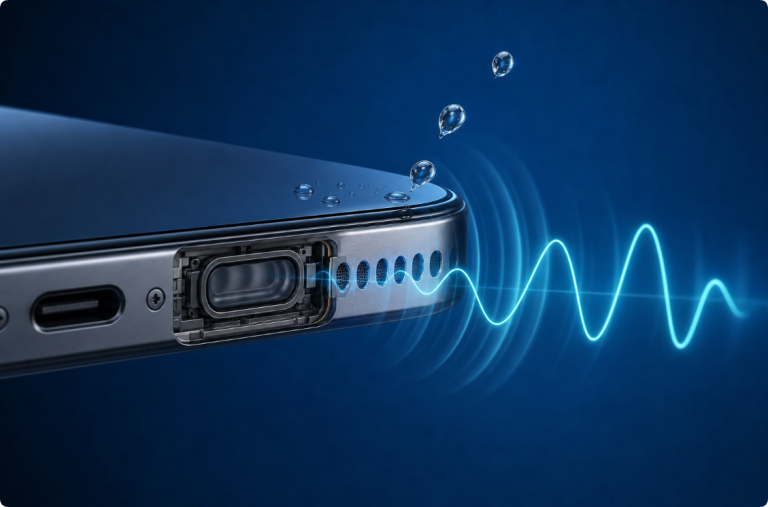
A low-frequency sound may move a small droplet close to a functioning speaker grille. It cannot dry the charging port or internal electronics. The guide explaining whether speaker-cleaner sounds and apps work separates water, dust, residue, and hardware problems.
Do not run long maximum-volume tones. Stop if the phone becomes warm, restarts, or produces sharp crackling.
7. Restart the Phone and Check Apps
A restart can clear a temporary audio service or routing state. Save your work, restart normally, and repeat the same test recording.
If one app remains affected:
- Check its in-app volume and audio-quality settings.
- Test another network if it streams audio.
- Update the app through the official app store.
- Clear only the app data or cache when you understand what will be removed.
- Reinstall the app only after confirming your account and local files are backed up.
Avoid unknown “audio booster” packages that request unrelated permissions or promise hardware-level improvements.
8. Understand What Equalizers Can and Cannot Do
An equalizer changes the balance of frequency ranges. It can make speech clearer or adjust music to your preference, but it cannot remove a physical obstruction or repair a damaged speaker.
Small phone speakers have physical limits. Aggressive bass boost can create buzzing or reduce clarity because the speaker cannot reproduce deep bass at high output.
Start with the neutral setting. Make small adjustments and compare at the same volume. If distortion appears only after an EQ change, return to neutral before investigating hardware.
9. Improve the Audio Source, Not Just the Speaker
For music or video, audio quality also depends on the source:
- streaming quality setting;
- network connection;
- file compression;
- recording microphone quality;
- clipping in the original recording;
- mono or stereo mix;
- app normalization or loudness settings.
A cleaner source can sound better without any change to the phone speaker. Compare a reliable local recording before judging the hardware.
10. Know When the Speaker May Be Damaged
Cleaning and settings are less likely to help when:
- distortion occurs across calls, media, and system alerts;
- the phone was dropped immediately before the problem;
- the grille is dented or torn;
- one speaker is silent while routing and settings are correct;
- the phone was submerged or exposed to salt, soda, or chemicals;
- heat, restarts, camera fog, charging problems, or display changes appear too.
Do not open a glued phone as an early audio clean-up step. Internal repair can affect the battery, cables, and seals, and should use model-specific documentation and qualified service.
Can a Speaker Cleaner Improve Audio Quality?
It can restore normal sound only when the tool addresses the real cause. Exterior cleaning may help a grille blocked by dust. A short water-eject tone may help a small droplet near a working speaker.
Neither method can:
- increase the speaker’s original power;
- repair a torn diaphragm;
- fix Bluetooth routing;
- improve a poor recording;
- restore damaged electronics;
- remove sticky internal residue.
The goal is normal output, not an artificial promise of studio-quality sound from a small phone speaker.
Frequently Asked Questions
How can I fix my speaker sound quickly?
Remove the case, turn off Bluetooth, test a local spoken recording, inspect the exterior grille, and restart the phone. These checks identify common causes without risking the hardware.
Why is my phone speaker not clear?
Possible causes include a blocked case, dust, moisture, audio settings, a low-quality recording, app problems, or hardware damage. Compare several audio sources before cleaning repeatedly.
Does cleaning the speaker improve audio quality?
It may restore clarity when debris blocks the exterior grille. It cannot enhance the speaker beyond its design or repair damaged components.
Should I use maximum volume to clear the speaker?
No. Maximum volume can add distortion and stress without fixing the cause. Begin at a moderate level and stop if the speaker crackles sharply.
Why do headphones sound normal but the phone speaker sounds bad?
Headphones and the built-in speaker use different hardware. The phone speaker may be blocked, wet, damaged, or affected by routing and settings specific to speaker playback.