
Water near an iPhone speaker can make calls, music, and alerts sound muffled. A short tone may help move droplets close to the speaker grille, but it cannot dry the charging connector or internal components.
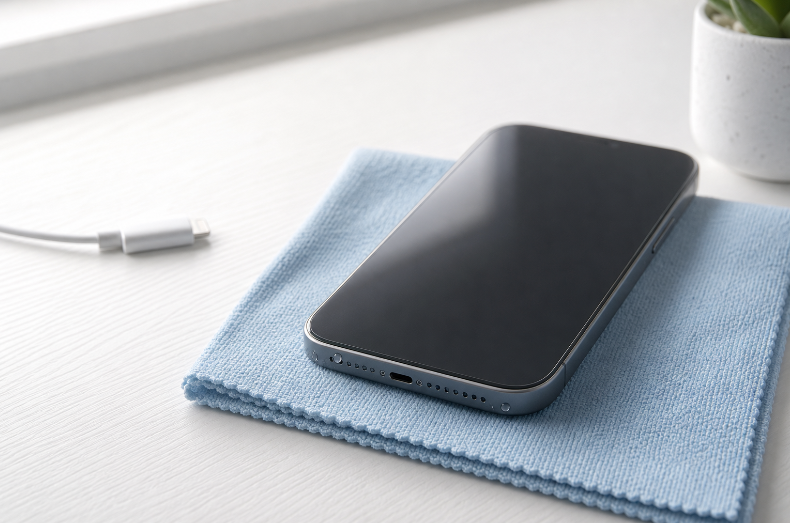
Start with Apple’s drying guidance. Treat an iPhone water-eject sound as an optional step for minor speaker moisture, not as a repair or a substitute for allowing the device to dry.
Quick Steps for a Wet iPhone Speaker
- Disconnect all cables and accessories.
- Remove the case.
- Wipe the iPhone with a soft, lint-free cloth.
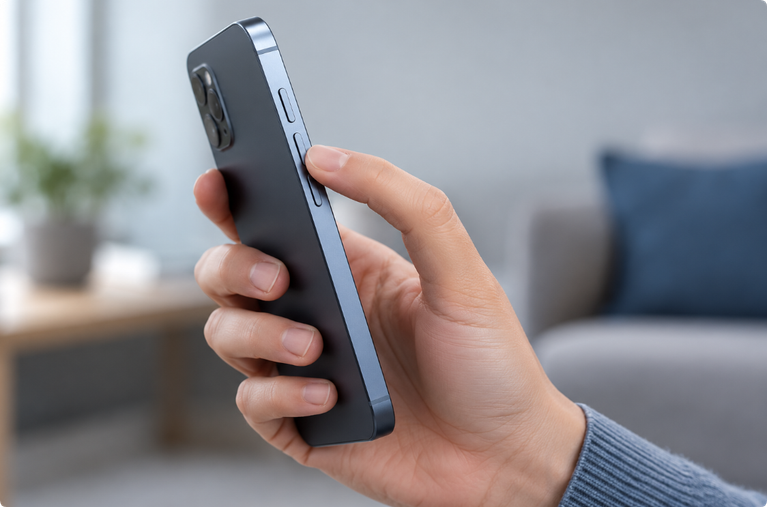
- Hold the Lightning or USB-C connector downward and tap the phone gently against your hand.
- Place the iPhone with the affected speaker facing downward in a dry area with airflow.
- Do not charge it until the connector is dry.
- If the phone is operating normally after a light splash, consider one short water-eject tone at a controlled volume.
If the iPhone was submerged, exposed to salt water or another liquid, becomes hot, will not turn on, or shows display or camera problems, stop using the tool and seek Apple or qualified repair support.
Does iPhone Have a Built-In Water Eject Feature?
Apple Watch includes an official Water Lock feature that plays tones to clear water from its speaker. iPhone does not provide the same built-in water-ejection control.
Some community-created Shortcuts, apps, and websites play a low-frequency sound to eject water from an iPhone speaker. These are unofficial tools. They should not be described as Apple repair features or as guaranteed methods.
How a Water-Eject Sound May Help
An iPhone speaker contains a moving diaphragm. Playing a tone moves that diaphragm and can sometimes shift a droplet sitting close to the grille. The result depends on the iPhone model, which speaker is affected, the amount of moisture, and whether a case or cloth blocks the opening.
There is no independently established universal frequency that is guaranteed for every iPhone. A preset or frequency sweep provides practical options to try, but more volume and longer playback do not guarantee better results.
How to Try the iPhone Water-Eject Tool
Only try a tone when the phone is stable and the issue appears limited to muffled speaker audio after a minor splash.
- Complete the basic drying steps first.
- Open the Water Eject Sound tool in Safari or another modern browser.
- Keep the charging cable disconnected.
- Hold the affected speaker downward over a dry surface.
- Start with the iPhone volume low.
- Play one short cycle and increase the volume only enough to produce a clear tone without harsh distortion.
- Stop and test a Voice Memo or spoken audio at a low volume.
- Allow more drying time before another attempt.
Stop immediately if you hear strong crackling, severe distortion, or an unusual mechanical sound. Do not run the speaker continuously at maximum volume.
Bottom Speaker, Earpiece, or Charging Port?
These areas require different responses.
Bottom speaker sounds muffled
Position the bottom edge downward, allow airflow, and consider a short tone after wiping the phone.
Earpiece speaker sounds muffled
Place the display side at a slight downward angle without pressing the earpiece into a cloth. Test a call only after the exterior is dry.
Liquid is detected in the charging connector
Disconnect the cable. Do not use a speaker tone as a charging-port cleaner. Apple says to leave the iPhone in a dry area with airflow and try again later. If the warning returns, additional drying time may be needed.
Camera, screen, buttons, or power are affected
This is no longer only a speaker problem. Stop DIY sound attempts and seek support.
What Apple Recommends
Apple’s current guidance says to:
- wipe the iPhone with a soft, lint-free cloth;
- tap it gently against your hand with the connector facing downward;
- leave it in a dry area with airflow;
- avoid external heat and foreign objects in the connector;
- avoid charging until the phone is dry;
- place the phone speaker-side down on a lint-free cloth if the speaker sounds muffled.
Apple also says not to put a wet iPhone in rice because small particles can damage the device.
What Not to Do
- Do not charge through a wet Lightning or USB-C connector.
- Do not use a hair dryer, heater, oven, or direct high heat.
- Do not use compressed air.
- Do not insert cotton swabs, paper, pins, or tools into openings.
- Do not shake the phone violently.
- Do not run repeated maximum-volume tone cycles.
- Do not assume an IP rating makes an older or repaired iPhone waterproof.
Water Resistance Is Not Permanent
Recent iPhones have laboratory-tested splash, water, and dust resistance, but Apple states that resistance is not permanent and can decrease with normal wear. Drops, impacts, temperature, and previous repairs can also affect seals.
An IP rating describes controlled test conditions. It does not guarantee protection from every real-world exposure, and liquid damage may not be covered by the standard warranty.
When to Seek Repair
Contact Apple or a qualified repair provider if:
- the iPhone was fully submerged;
- it was exposed to salt water, pool water, soap, soda, coffee, or another liquid;
- the phone becomes hot, restarts, or does not turn on;
- the camera fogs or the display changes;
- a liquid-detection warning continues after adequate drying time;
- the charging port or speaker still fails after drying;
- the device contains important data that has not been backed up.
Frequently Asked Questions
What sound ejects water from an iPhone?
A short low-frequency tone or sweep may move droplets near a speaker grille. There is no single guaranteed frequency for every iPhone model.
Should I turn the iPhone volume to maximum?
No. Start low and increase only until the tone is clear. Stop if the speaker becomes harsh or distorted.
How long should I play the water-eject sound?
Use a short attempt, stop, and check the result. Allow natural drying time rather than playing a continuous loop.
Can the sound dry the USB-C or Lightning port?
No. The speaker and charging connector are different components. Follow Apple’s liquid-detection instructions for a wet connector.
Is an Apple iPhone cleaner app required?
No app is required to play a browser tone. However, neither a website nor an installed app can diagnose or repair internal liquid damage.
Why is the iPhone speaker still muffled?
Moisture may still be evaporating, or residue, debris, corrosion, or hardware damage may be affecting the sound. Repeated loud playback is not a substitute for inspection.
Official Sources
- Apple Support: About splash, water, and dust resistance of iPhone 7 and later
- Apple Support: If you see a liquid-detection alert on your iPhone
Reviewed and substantially updated July 21, 2026. We removed unsupported success-rate and “best frequency” claims and aligned the drying steps with current Apple Support guidance.